Twitch & Kick · Discord Servers · Europe & Beyond
When you go live on Twitch or Kick: a clear Discord post in the right channel
Your server is the hub for community and moderation. Streamboard translates your go-live on Twitch and Kick into a clean server message – with preview, stream link, and templates that match your brand. Perfect for creator and gaming communities who want to stay informed without detours.

Streamboard connects Twitch and Kick with Discord and Telegram – in one account. Twitch go-live is detected via EventSub, Kick via the official webhook event livestream.status.updated. Polling only runs as a fallback. The same account holds the analytics for your own channel: viewer history, event timeline and follower gain/loss.
How does this fit into Streamboard overall?
Discord notifications are a core part of Streamboard alongside Telegram, stream analytics, and the shared feature overview. Answers to beginner questions: FAQ.
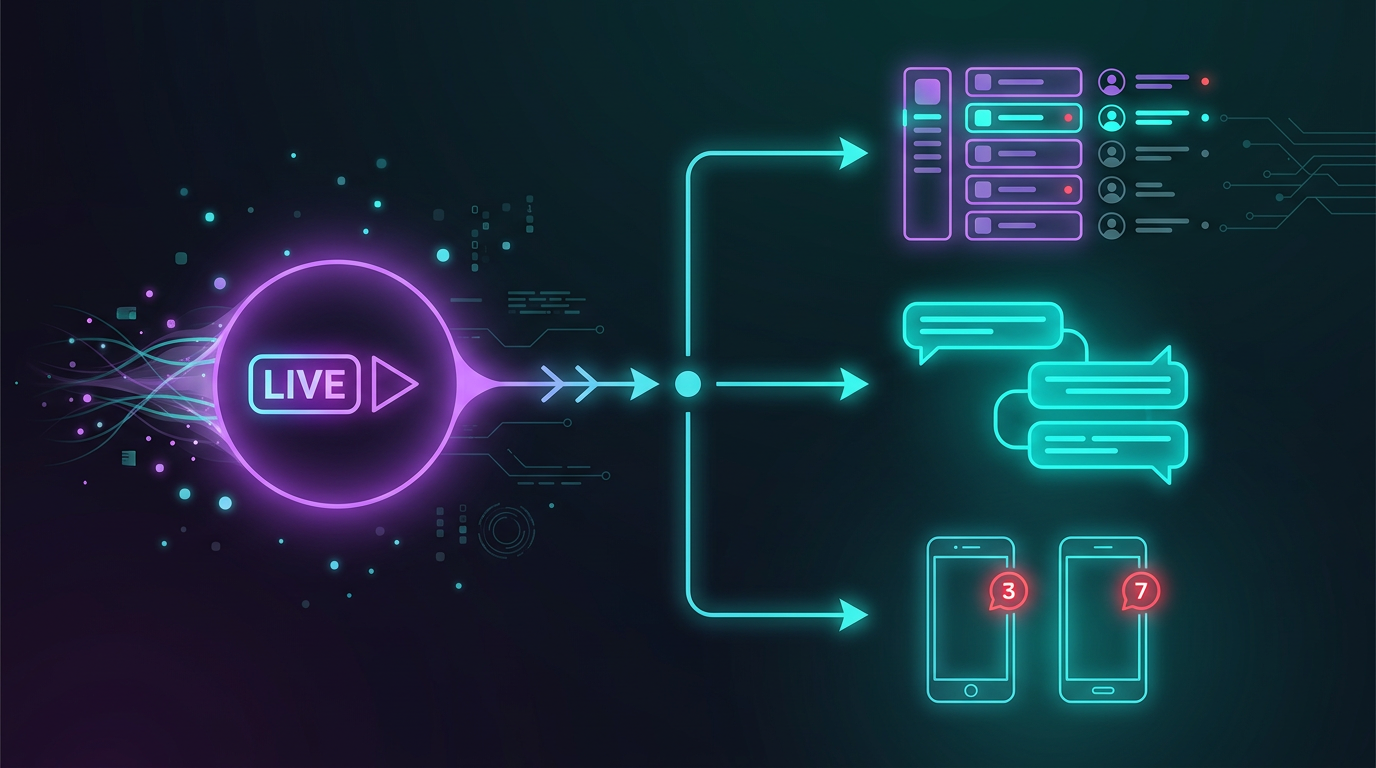
From Twitch to your Discord server listing
The technical picture is simple: Twitch reliably reports the live start via EventSub. Streamboard creates your formatted message and posts it to the Discord channels you specify – regardless of whether your viewers are on mobile.
Setup
Four stages from a server perspective – no overlap with the quick start
The homepage explains the quick start in broad strokes. Here the focus is on permissions, room logic, and multiple Discord targets – typical questions from moderators and organizers rather than a simple click-through guide.
-
Authorize your streamer identity via Twitch
You confirm OAuth access – no new password for Streamboard. From then on, everything relates to this Twitch account: live metadata, titles, and preview content that flows into your server.
-
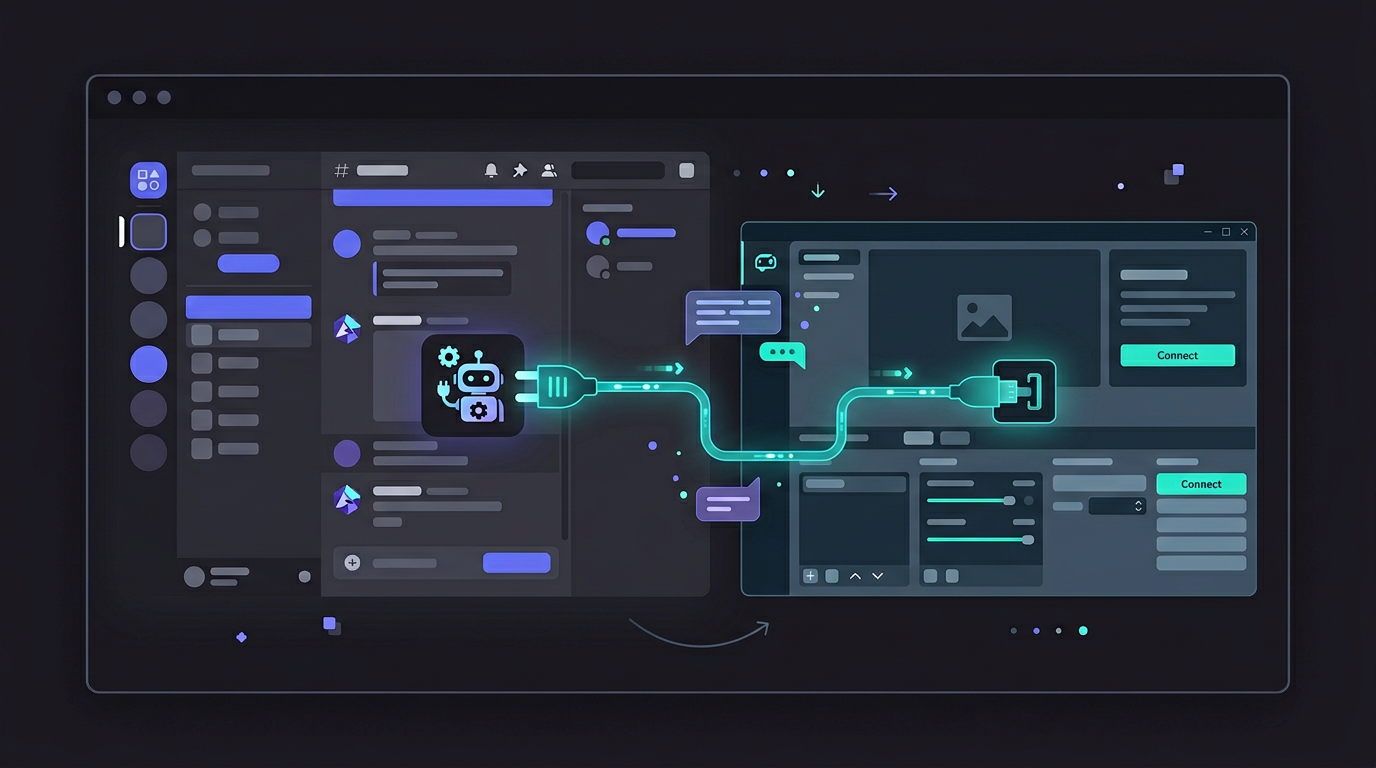
Invite the bot and set write permissions cleanly
The bot speaks for you in text channels. After the invite, you clarify which roles it sees and where posting is allowed – avoiding surprises in sensitive or mod-only areas.
-
Draft your message before the first ping goes out
Here you decide the tone in the channel, not just the text: card layout, keywords from the live stream, what should be immediately visible. This keeps your server presence recognizable – from a mini just-chatting to a big release night.

-
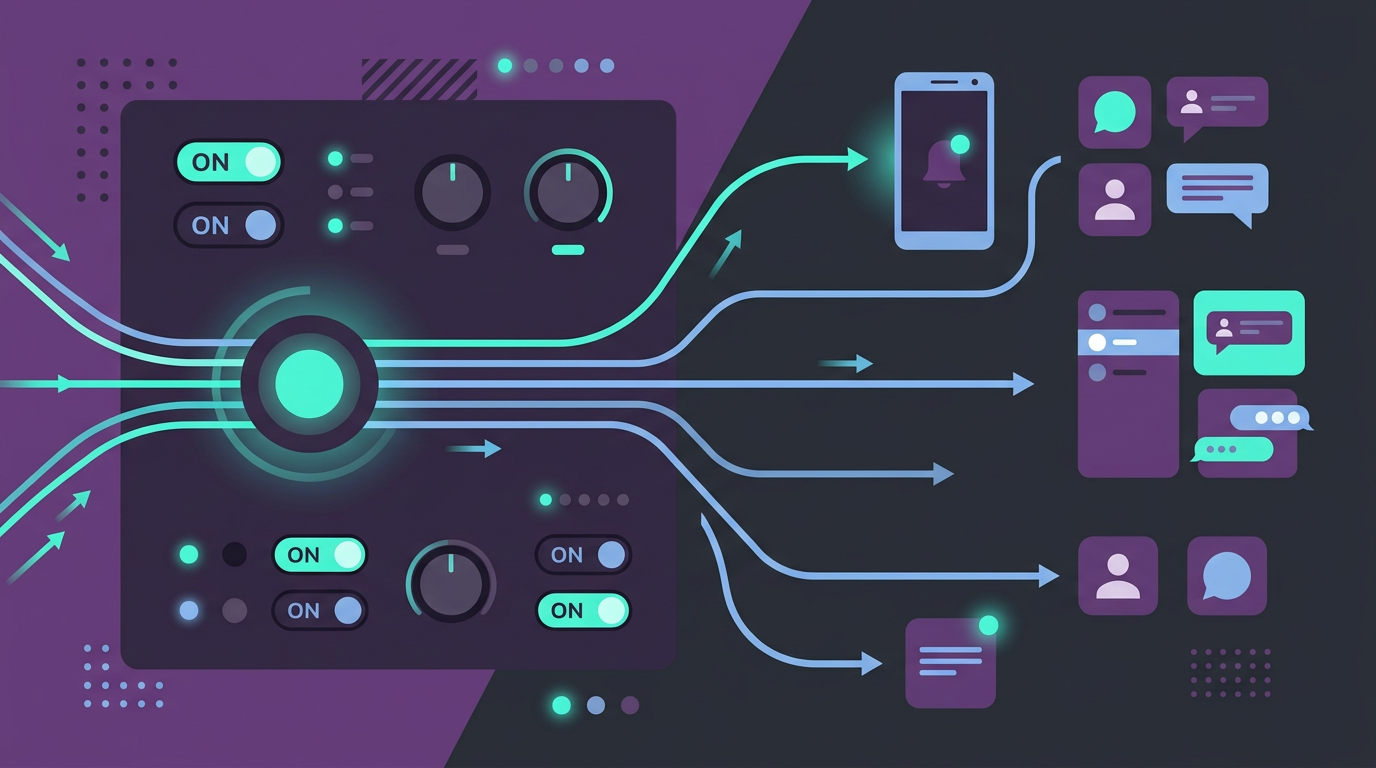
Routing: which room gets which intensity?
Same live moment, different audience contexts – e.g. loud alert in the community hub, quiet mention in the mod area, or just a second target for partners. You map who needs which information instead of hitting everyone at the same volume.
Why Discord works for creator communities in Europe
Many teams and viewers in Europe organize on Discord long-term. A reliable server notification at go-live boosts visibility without spam – and complements other channels like Telegram for mobile pushes.
For Moderation & Server Teams
- Clear separation: announcement channel vs. chat
- Structured embeds instead of loose links
- Same logic as multi-server setups
For Viewers
- Quick judgment: live yes/no at a glance
- Direct entry into the stream
- Works alongside other notification targets
Announce Kick live in the same Discord server
Discord targets are not limited to Twitch. Link a Kick channel as well and the official Kick webhook reports the live start, while Streamboard posts to the very same channels – same templates, same permission logic, same multi-server targets. When the stream ends, the message is finalized instead of going stale.
Streamboard compared with the Discord bot category
Categories are compared here, not individual products. The difference is not the number of sources but the combination: Twitch and Kick as sources, Discord and Telegram as targets, plus the analytics for your own channel in the same account.
All-purpose Discord bots
- Stream alerts are one feature among many
- The focus is on moderation and server management
- No Telegram target, no analytics for your own channel
Discord-only stream alert bots
- Discord is the core target of this category
- The path ends at Discord – no second target such as Telegram
- Alerts without viewer history or follower development for your channel
These category statements are based on the homepages of the providers we reviewed, as of August 2026. Individual products may differ; when in doubt, check the provider page.
Common questions about Discord live notifications
What are the best ways to integrate Twitch with Discord?
Use EventSub webhooks for reliable live detection, a dedicated bot for formatted embeds, and clear channel targets. Streamboard connects Twitch and Kick OAuth and posts go-live messages to Discord with templates and multi-server support.
How can I set up Discord notifications for my live streams?
Link Twitch via OAuth, invite a bot to your server, pick an announcement channel, and configure a message template with stream link and preview. Streamboard automates this with EventSub webhooks, embeds, and multiple targets per server – for Twitch and Kick.
Does Streamboard support Twitch and Kick at the same time in one Discord server?
Yes. One Streamboard account posts both Twitch and Kick go-live to the same Discord server through the same bot. Twitch go-live arrives via EventSub, Kick via the official webhook event livestream.status.updated. Each target gets its own template and role mentions, and the same sources serve targets across multiple servers and channels. On request the same live signal also goes to Telegram.
Activate Discord Notifications
Create an account and work through the four stages in the board – sequence and checkpoints are visually guided there; here you have the server-side reasoning ready.